Total Pageviews

Friday, March 20, 2020

Curating Resources and Centralizing Tutorials

Image result for communication


Like me , I'm sure that you have received emails on 100s of resources to use for curriculum content as well as tools that will assist you in delivering content, collecting content... It's very overwhelming. I would like for us to work together to create a resource that includes resources that have been vetted and that SOUTH SCHOOL teachers have used with success. I will be compiling that information on a spreadsheet and will share them below as they are created.


Communication LINK
This spreadsheet has information on resources to communicate with teachers, students, and parents.

Thursday, October 17, 2019

Halloween Resources

Hello Teachers! PBS Learning Media has short video clips, word finds, crossword puzzles and activities to help you provide educational fun for the Halloween holiday. Click on the link below to see what they have to offer.

Epic! has a great selection of Halloween books, videos, and audio recordings. Remember you can assign these to your students if you want. Let me know if you need help with this.

Brain Pop has videos on Halloween, Mummies, Spiders, and Bats. Brain Pop Jr. has a video about Halloween. Remember that you can assign specific videos and quizzes to students and that students can now log into Brain Pop through Clever. I'm happy to help with this if you need it.

Don't forget to use Pebble Go and World Book (through the Digital Maine Library) to dig deeper into whatever you might be studying. Students in grades 3+ should know how to use World Book on their own. Students in grades 1-5 should know how to use Pebble Go. Kindergarten will be introduced next week!

Search the Online Library Catalog for books in the South School Library including nonfiction books about the Halloween holiday and fiction books from our favorite characters: Arthur, Mercy Watson, Henry and Mudge, Hank the Cowdog, Stick Dog, Clifford, Amber Brown, Nate the Great, Franklin, Heidi Hecklebeck, and Magic Treehouse. Reserve your books early otherwise I will make them available for students.


Where do all the pumpkins go after Halloween? Unfortunately many go to the landfill. Read this blog to learn more. The blog includes information about Maine's own Pumpkin Festival in Damariscotta as well as ideas for things to do with those pumpkins so they don't end up in the landfill. LINK

How to make a pumpkin bird feeder. LINK
Nature Cat Composter LINK
Halloween Pumpkin After Party LINK

Thursday, March 7, 2019

Whale Dilemma


Image result for the boy and the whale
The Boy and the Whale by Mordicai Gerstein
In the book, "The Boy and the Whale" by Mordicai Gerstein a young boy from a fishing family has a difficult decision to make. Read the story and watch the video below to see the true life story that inspired the fiction book. The Boy and the Whale is a Chickadee Nominee.

Tuesday, February 26, 2019

Therapy Dogs

Image result for hello goodbye dog
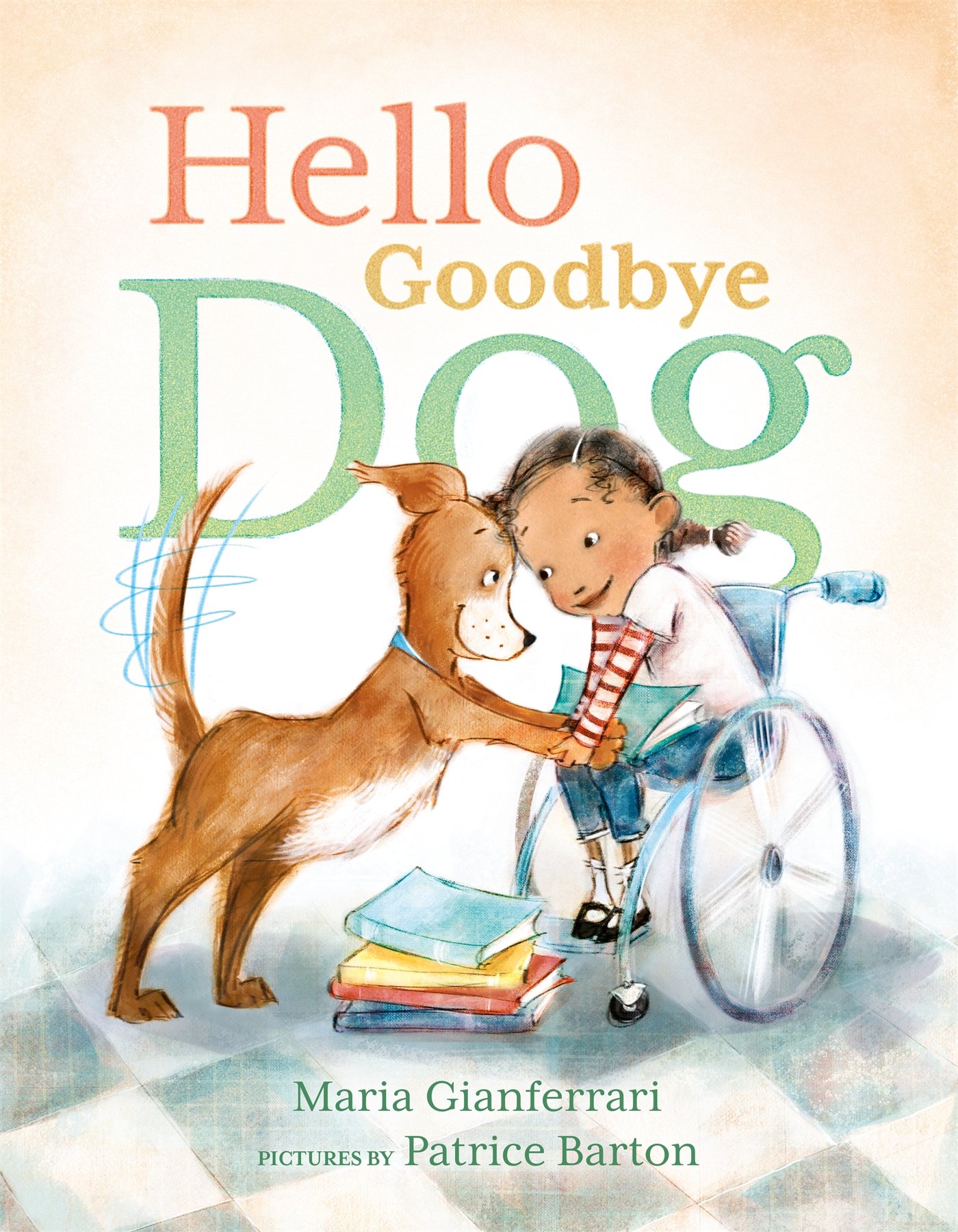
Hello Goodbye Dog by Maria Gianferrari is the latest Chickadee nominee we are reading at South School. It introduces students to the concept of therapy dogs and encourages them to read aloud to their pets. "Therapy dogs can be used in classrooms and libraries to foster a love of reading. Therapy dogs provide a "pawsitive" association with reading, and especially with reading aloud, since child readers are neither judged on nor corrected for mispronunciation."

To learn more about therapy dogs visit

Wednesday, January 23, 2019

Brain Pop and Duolingo

Image result for Brainpop logo
Students can now access Brain Pop and Brain Pop Jr in their Clever accounts. Teachers also have the ability to assign videos to their classes along with other activities. The teacher dashboard allows you to see student scores on quizzes. You can look for lesson plans that relate to Brain Pop videos in Brain Pop Educators, LINK. Brain Pop videos can be searched by standard, grade level, and subject. If you need help doing any of the above or would like support the first time you roll this out in the classroom, please schedule a time to meet with me.
Related image
Duolingo is a free foreign language app for all ages. Teachers can create accounts, set up classrooms, and add students. Use this as an option in your Language Arts classroom for students who have completed their work or as a rotation during center time. Lessons are audio driven so headphones are needed. The teacher dashboard will allow you to create assignments and monitor student progress. Please let me know if you need help with this or if you would like to explore further. LINK

Monday, December 3, 2018

Code Folders


Code for Kids

Each year
 in December we celebrate Computer Science Education Week by participating in coding activities during IT classes. Hour of Code is an international effort to get kids creating computer code and many of the resources we use come from code.org. Students in grades one through five have a code folder on their home screen. Even though these apps look like games and kids have a lot of fun using them, they are in fact learning some great skills.
Image result for hour of code logo


Hour of Code LINK
“The 'Hour of Code™' is a nationwide initiative by Computer Science Education Week and Code.org to introduce millions of students to one hour of computer science and computer programming.”


This year students in grades 3-5 had a great time creating dance routines with Dance Party

Here are some other programs we used:

Image result for kodable icon       Image result for code spark academy 
First and Second Grade
Kodable
CodeSpark

Related imageRelated image
Third and Fourth Grade
Lightbot
Tynker

Image result for swift playground
Fifth Grade
Lightbot
Swift Playgrounds

Image result for how to code a sandcastle

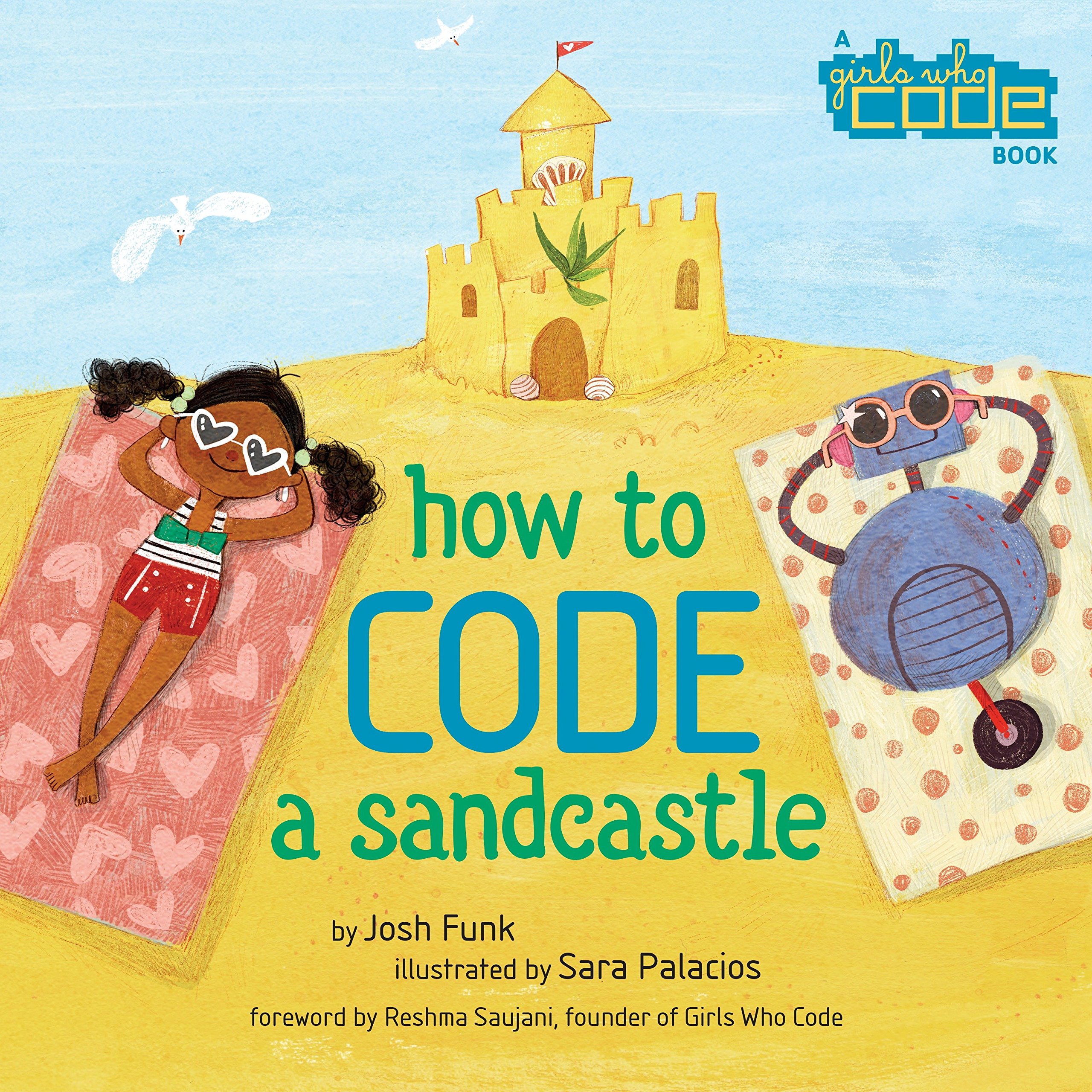
We read, How to Code a Sandcastle by Josh Funke to all students in grades 1-5. This simple book provided a basic overview of how code works and introduced us to sequences, loops, and conditionals. 

If you would like more information about code or would like to collaborate on more coding projects please stop by.


Thursday, September 27, 2018

Student Reading Folders

Student reading folders can be a source for free reading materials and for classroom research. Many online libraries provide opportunities for unlimited numbers of students to read the same book so they are also great for small group reading. Some digital libraries include digital as well as audio books. Folders should include the following:
Epic! 
For information on how to create a classroom account you can watch the "Getting Started" video. LINK

You can also learn how to create a student quiz (multiple choice or true and false) to check for understanding, create a collection of books and use the student reading logs. 

Storyline Online Free, No Login

Image result for storynory logo
Storynory Free, No Login

Image result for destiny discover logo
Destiny Discover Our South School library collection of digital books as well as access to the online library catalog and personal account information. Students (and teachers) can put books on hold here and see what they have out. 

Image result for open ebooks logo


Monday, June 4, 2018

Video Sources

Kids love to watch videos, and if videos are carefully selected, children are closely monitored, and screen time is used sparingly, videos can be entertaining and educational. Watch together as a family, follow up with a discussion, and you’ve changed a passive activity to a fun family event. For guidelines on screen time for kids visit, HealthyChildren.org.

YouTube for Kids

This is an app you can install on your iPad or iPhone. It is geared for kids up to second grade. You can limit age level to preschool or school age, turn the searching option on or off, set a passcode, and monitor history. Recommended channels: Piano Guys, National Geographic Kids, PBS Kids, Peg & Cat, All Things Animal, Crash Course Kids, Big Wide World.

Brain Pop and Brain Pop Jr.
We purchase this educational video resource for classroom instruction and as a student
resource. Parents can login at home using RSU13South for the Username and learn for
the password. There’s a featured video everyday. Kids can watch it and take a quiz after to
see what they learned.


YouTube You can learn about everything under the sun on YouTube which is
good and bad. Children should be very cautious when using YouTube or they may
stumble onto content that is not appropriate. We teach our students to 1) Only go
on the internet with an adult, 2) Stick to sites that are just right for kids, 3) Only talk to
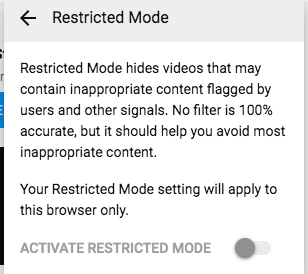
people that you know. You can restrict searches by clicking on your profile, scrolling to
the bottom and selecting “Activate Restricted Mode”. Create “Playlists” of content that
you want your kids to be able to watch by clicking on the + button just under the video.


Search for appropriate content by searching for reputable channels and subscribing.
Here are some recommendations: Ted-Ed, Cartooning 4 Kids, Patty Palmer (Deep
Space Sparkle), San Diego Zoo, Flocabulary, Sick Science, Crash Course Kids,
Smart Girls.


Create Your Own Video
In a world where videos are such a powerful tool to communicate and learn,
it only makes sense that we know how to make our own. These are a few video apps
we used this year.


Adobe Spark Video
Spark Video is not a tool designed for kids but it is super easy to use and
very intuitive. Kids can create slides using their own illustrations and photos or images
they get from the internet (as long as they are choosing sites they have permission to
use for photos). Each slide can be narrated, text can be added, as well as theme music.
Videos have a very professional look to them with little effort or special tools. Spark
Video can be used online through a browser or on a tablet or iPad.


Stop Motion Studio Pro
This is an app we purchased for South School students in grades 3-5
but it could be used with younger students as well. If you want to create Gumby or
claymation style videos, this is the app you need. Our students creates simple
2 dimensional characters from paperand shot their footage from above, moving
characters and settings in small increments. With the paid version you can add theme
music and sound effects as well as narrate with
your voice.

Toontastic
Toontastic is a fun animation app that lets kids choose premade settings
and characters and compose their own stories. If you have a creative child that just
wants to tell their imaginative stories without the fuss of creating characters and
settings this is your app. Characters can be customized. Stories are told through
audio narration, not text.

If your children are making video creations, remind them not to
include any personal information in their work. We teach them not to
share their full names, birthdates, addresses, personal photos, email
addresses, phone numbers.

Wednesday, May 2, 2018

Teachable Moment- Cinco De Mayo

From Pebble Go

Holidays provide wonderful opportunities to model use of websites and databases. Consider asking your students questions about Cinco de Mayo and modeling how to search for the answers using KEYWORDS and RESULTS PAGES. 

Use links from the learning commons website to go to places that South School students are familiar with. LINK You will find articles in Britannica and Pebble Go as well as Brain Pop Jr. (the video is about Mexico but mentions Cinco de Mayo). If you need help getting to Britannica, Brain Pop, or Pebble Go, please let me know.
From Brain Pop Jr.

From Britannica

You may also want to consider creating a free PBS Media account. PBS is a respected educational resource and PBS Media is specifically designed to provide teachers with videos, lesson plans and activities. For Cinco de Mayo, they provide a short video describing the holiday as well as word finds for Kindergarten through Grade 3. You can search their database by keywords or by standard. If you need help with locating these materials or setting up an account, please let me know.


Sample Questions:
  1. What country celebrates Cinco de Mayo? (Mexico)
  2. What does Cinco de Mayo mean? (fifth of May)
  3. How do Mexican people celebrate Cinco de Mayo? (parades, dancing, food)
  4. Why do Mexican people celebrate Cinco de Mayo? (victory over the French in the Battle of Puebla)


Sunday, March 11, 2018

MEA Information

MEA Testing Information
  • Any staff members that will be testing students in the classroom, in small groups, or one on one, need to watch a 16 minute "Test Security video and the "Test Administrator Webinar" which is about 15 minutes long. 
  • There will be two opportunities to watch the required videos and to ask questions about the MEA test. They are Thursday, March 15th at 7:45 am and Tuesday, March 20th at 7:45 am. You may also watch the videos online at your convenience. All teachers must sign a Test Security Agreement and give it to Justin.
  • It is recommended that students have an opportunity to learn test taking strategies using the "Sample Booklets" that were distributed to classroom teachers. 
  • It is also recommended that students have an opportunity to learn the digital tools that are part of the testing app. There is a scripted "Student Tutorial" manual that was distributed to classroom teachers. The student login information will be distributed on a "MEA Cheat Sheet" as soon as it is complete. Follow the tutorial with your students to review how to do the test online.
  • Links to all of the necessary MEA materials are provided on the lower right side of this website.
Please email Monica or myself if you have any questions.

Wednesday, January 31, 2018

Groundhog Day Resources


PBS Learning Media is a site where you can locate videos and teacher materials on a variety of different subjects. You can create an account for free. You can search for materials by Common Core Standard or Next Gen Standards.


Britannica Encyclopedia has an article
DLTK has activities for younger kids
DLTK Crafts

Books in our Library
Kept at my desk for short term check-outs so everyone can use them.


Thursday, October 5, 2017

Assistive Touch Tool


The Assistive Touch Tool is a "button" that will stay on your screen, providing you quick access to some handy features like "Speak Screen" and "Screenshot". This could simplify use of some of these features that are hampered by the child safe cases that are on student iPads. Here is how to set up the Assistive Touch Tool.

  • Open Settings
  • General
  • Assistive Touch 
  • Turn on by swiping the button to the right. It should turn green.
To Customize the Assistive Touch Tool with the features you want to use follow the instructions above. Click, Customize Top Level Menu...
  • Click the + button to add features (options include: Home, Notifications, Device, Siri, Control Center, Lock Screen, Rotate Screen, Volume Up, Volume Down, Gestures, Triple-Click, Shake, Multitasking, Screenshot, Lock Rotation, Pinch, Double Tap, Analytics, Dock, Restart, Speak Screen)
  • Choose up to 8 features
  • I recommend that students use the Screenshot feature and the Speak Screen feature.

Screen Reader

This is the new screen reader that will pop up on your screen and read aloud the text that is up on your screen. The turtle symbol will slow down the speed of the text and the rabbit symbol will speed it up. If you click on the first circle with the less than symbol, it will minimize the tool bar and keep it on your screen to use again when you are ready. 
  • Use a two finger swipe from the top edge of your screen to bring up the screen reader.
  • You can also add the screen reader to your Assistive Touch tool. It's called, "Speak Screen". (GENERAL-ACCESSIBILITY-ASSISTIVE TOUCH-ON-CUSTOMIZE TOP LEVEL MENU-(+)-SPEAK SCREEN)

Monday, May 15, 2017

Bugs!

It's the time of year when we would all like to spend more time outdoors. What a great time to learn more about the critters in the ARTHROPOD family, especially those that we need to be cautious of, like ticks! It's also a perfect time to observe the pollinators that are in our gardens, like bees and butterflies? In the learning commons we will be learning about INSECTS and ARACHNIDS, and all of the things that bugs do that help as well as hurt us.
This playlist has informative videos about bugs as well as information about how to be safe from ticks.

For additional information about ticks click on these links:

Brain Pop has videos about Lyme Disease as well as Arachnids, Spiders, Insects, and Ants. You can also read about Arthropods at Brittanica Encyclopedia Online using the Marvel Database.

Saturday, April 8, 2017

April is National Poetry Month

The Poetry Maker Space in the Learning Commons has lots of activities students can do independently and in small groups, or you sign up to bring your whole class. Please stop by to get Poetry Passes for your student and see what times are convenient for them to stop by. This could be a reward for students that finish their work early or a way to recognize students that are able to follow classroom expectations and are able to work independently. Students that come independently should be able to read directions and work on their own. Some activities will require use of an iPad. Here are the activity choices:

  1. Create and decorate a pocket for Poem in Your Pocket Day. Choose some poems to fill your pocket.
  2. Choose from a selection of poems to illustrate.
  3. Record the poem you illustrated for a school poetry book.
  4. Create your own mini poetry book filled with short classic poems that are copyright free.
  5. Listen to poems from recommended websites.
  6. Write, illustrate, and record your own Haiku.
  7. Write, illustrate, and record your own Limerick.
  8. Write, illustrate, and record your own Acrostic.
  9. Write, illustrate, and record your own Black Out Poem

Even the youngest students like to perform simple poems. Take a look at Shel Silverstein's website for the poem, Eight Balloons. Also check out Giggle Poetry in their Poetry Theater section for poems that are suitable for performing. They also have a lesson on performance poetry. A great way to showcase student performances is to have a cafe style poetry slam. If you are interested let me know and we can plan an event in the learning commons.

There are various national competitions for performance poetry. These will give you an idea of what performance poetry is. Some of them are a little intense so preview them to make sure they are appropriate for your grade level.

The Spider and the Fly is a great read aloud. There are some other classic poets here as well.

This playlist has information about how to write poetry. Brain Pop has a video about poetry and another about simile and metaphor. Brain Pop Jr. has a video about Poems.

Our school library has an excellent collection of children's poetry. We have Paul Janeczco's, "A Kick in the Head; An Everyday Guide to Poetic Forms" It includes samples of almost 30 different kinds of poetry with information about how to write each style.
Also in our library by Paul Janeczko, "A Poke In the Eye; a Collection of Concrete Poems. 

Joyce Sidman has a wonderful collection of children's nature themed poetry books. Most of them have a poem on one side of the two page spread and information about the animal on the other. We have many of them in the library including:


 Sidman's newest book, Round, which we don't have yet, is all about, you've got it, round things in nature. It came out in March and has already received rave reviews. I can't wait to see it! We will order it for fall.

Online Resources:
  • StoryNory has a great collection of poetry read alouds. These are audio only so they are a great way to build on listening skills. Listen to a poem one time through, then listen a second time and draw pictures to illustrate. 
  • Poetry Zone is from the UK. They publish poems written by kids so it's a great resource for student work and a great place for aspiring poets to get published.
  • Poetry4Kids has a rhyming dictionary, Poetry Podcasts, Poetry Lessons, Poetry Games, and of course, Poems!
  • Poem in Your Pocket Day from Poets.org.
  • Giggle Poetry is a poetry activity site for kids. Poetry Class includes poetry lessons. Poetry Fun has tongue twisters and riddles. 
  • Ogden Nash
  • Limericks